Clone This Website: Your Free, Open Source Starting Point
No Really! We Mean It!
Here at LokiSoft, we believe knowledge belongs to everyone. No one should be paywalled out of learning new things. We've all been there—finding outdated sources, struggling with technical jargon, feeling overwhelmed by the sheer number of libraries and frameworks out there.
That struggle is exactly where this project was born.
"Freely you have received; freely give." — Matthew 10:8 (NIV)
Yeah, we offer services to build stuff—something has to pay the bills. But if you click the Source button in the navigation bar right now, you'll find the complete source code for this entire website. Free. Open. Yours to learn from.
Introduction
This guide will walk you through everything you need to clone this website and make it your own. By the end, you'll have a fully functional, professional website running locally and ready for customization.
What You'll Learn
- Setting up your development environment
- Cloning and running the project
- Customizing branding and content
- Understanding the project structure
- Deploying to production
Prerequisites
| Requirement | Description |
|---|---|
| Node.js | Version 18 or higher |
| Git | For cloning the repository |
| Code Editor | VS Code recommended |
| Terminal | Command line access |
| Time | About 30 minutes |
Getting Started: Clone the Repository
Let's get this website running on your machine.
Step 1: Install the Prerequisites
Before you begin, make sure you have these installed:
- Node.js (v18 or higher) - Download here
- Git - Download here
- pnpm (recommended) - Install with
npm install -g pnpm - VS Code (optional) - Download here
Step 2: Clone the Repository
Open your terminal and run:
# Clone the repository
git clone https://github.com/LokiRothbrook/lokisoft.git
# Navigate into the project
cd lokisoft
# Install dependencies
pnpm install
Step 3: Start the Development Server
pnpm dev
Open http://localhost:3000 in your browser. You should see the LokiSoft website running locally!
"The one who gets wisdom loves life; the one who cherishes understanding will soon prosper." — Proverbs 19:8 (NIV)
Making It Your Own
Now for the fun part—transforming this into YOUR website.
Update the Branding
1. Change the Logo
The logo component is located at components/ui/neon-logo.tsx. You can replace it with your own logo or modify the existing SVG.
2. Update Company Information
Search for "LokiSoft" throughout the codebase and replace it with your company/brand name. Key files to update:
| File | What to Change |
|---|---|
app/layout.tsx | Site metadata and title |
components/layout/footer.tsx | Footer content |
app/about/page.tsx | About page content |
app/page.tsx | Homepage content |
Customize the Theme
All theme variables are defined in app/globals.css. You can customize the neon colors:
:root {
--neon-pink: oklch(0.7 0.25 350);
--neon-purple: oklch(0.65 0.25 300);
--neon-blue: oklch(0.65 0.2 250);
--neon-cyan: oklch(0.75 0.15 195);
}
Update Services & Products
Your services and products are defined in:
lib/data/services.ts- List of services you offerlib/data/products.ts- List of products you sell
Edit these files to reflect your own offerings!
Understanding the Project Structure
Here's a quick overview of the codebase:
lokisoft/
├── app/ # Next.js App Router pages
│ ├── page.tsx # Homepage
│ ├── about/ # About page
│ ├── blog/ # Blog pages
│ ├── services/ # Services pages
│ ├── products/ # Products pages
│ └── contact/ # Contact page
├── components/ # Reusable React components
│ ├── layout/ # Navbar, Footer
│ ├── ui/ # UI components (buttons, cards, etc.)
│ └── home/ # Homepage-specific components
├── lib/ # Utility functions and data
│ ├── blog.ts # Blog system utilities
│ └── data/ # Services and products data
├── posts/ # Markdown blog posts
└── public/ # Static assets (images, etc.)
app/ - This is where all your pages live. Next.js uses file-based routing, so app/about/page.tsx becomes the /about route.
components/ - Reusable React components. The ui/ folder contains base components like buttons and cards. The layout/ folder has the navbar and footer.
lib/ - Helper functions and data. The blog system lives here, along with your services and products definitions.
posts/ - Your blog posts as Markdown files. Just create a new .md file here to publish a new post!
public/ - Static files like images. Anything here is accessible at the root URL (e.g., /logo.png).
"For everything there is a season, and a time for every matter under heaven... a time to break down, and a time to build up." — Ecclesiastes 3:1,3 (ESV)
Adding Your First Blog Post
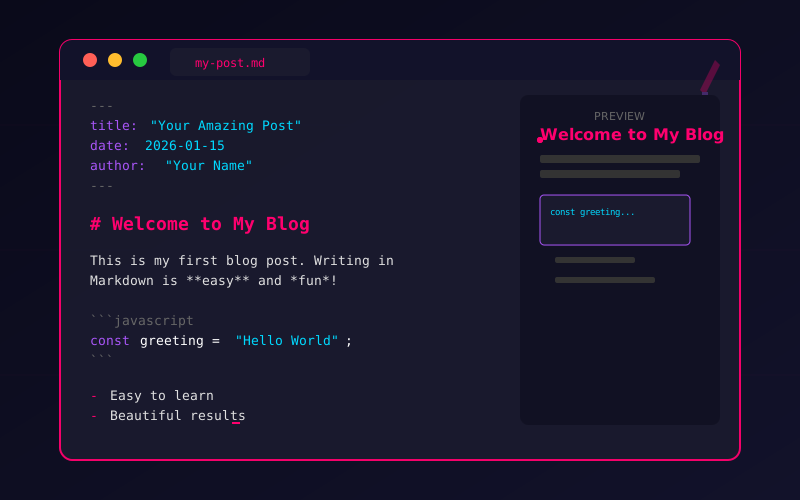
Creating a blog post is as simple as creating a new Markdown file in the posts/ directory.
Create a New Post
Create a file like posts/my-first-post.md:
---
title: My First Post
date: 2026-01-15
author: Your Name
excerpt: A brief description of your post.
categories: General, News
difficulty: 1
---
# Welcome to My Blog!
Write your content here using Markdown...
That's it! Your post will automatically appear on the blog page.
Deploying Your Site
Ready to go live? Here are your options:
Option 1: Vercel (Recommended for Beginners)
Vercel is the company behind Next.js and offers the easiest deployment:
- Push your code to GitHub
- Go to vercel.com
- Import your repository
- Click Deploy
That's literally it. Vercel handles everything.
Option 2: Self-Hosting with Docker
Self-hosting gives you full control over your deployment. This is for more advanced users who want complete ownership of their infrastructure.
Prerequisites
- A server (VPS, home server, etc.) with Docker installed
- Basic familiarity with command line and Docker
- Your domain pointed to your server's IP address
Step 1: Environment Configuration
Copy the example environment file:
cp env.example .env.local
Edit .env.local with your values.
Step 2: Setting Up Services
Resend (Contact Form):
- Create a Resend account
- Add and verify your domain
- Generate an API key
- Update your
.env.local:
RESEND_API_KEY=re_your_actual_api_key
CONTACT_EMAIL=your-email@yourdomain.com
RESEND_DOMAIN=yourdomain.com
Giscus (Comments):
- Enable Discussions on your GitHub repository
- Install the Giscus app at github.com/apps/giscus
- Configure at giscus.app
- Update your
.env.local:
NEXT_PUBLIC_GISCUS_REPO=yourusername/yourrepo
NEXT_PUBLIC_GISCUS_REPO_ID=R_kgDO...
NEXT_PUBLIC_GISCUS_CATEGORY=Blog Comments
NEXT_PUBLIC_GISCUS_CATEGORY_ID=DIC_kwDO...
Step 3: Create Docker Files
Dockerfile:
# Build stage
FROM node:20-alpine AS builder
WORKDIR /app
RUN corepack enable && corepack prepare pnpm@latest --activate
COPY package.json pnpm-lock.yaml ./
RUN pnpm install --frozen-lockfile
COPY . .
COPY .env.local .env.local
RUN pnpm build
# Production stage
FROM node:20-alpine AS runner
WORKDIR /app
RUN corepack enable && corepack prepare pnpm@latest --activate
RUN addgroup --system --gid 1001 nodejs
RUN adduser --system --uid 1001 nextjs
COPY --from=builder /app/.next/standalone ./
COPY --from=builder /app/.next/static ./.next/static
COPY --from=builder /app/public ./public
COPY --from=builder /app/posts ./posts
RUN chown -R nextjs:nodejs /app
USER nextjs
EXPOSE 3000
ENV PORT=3000
ENV HOSTNAME="0.0.0.0"
CMD ["node", "server.js"]
docker-compose.yml:
version: '3.8'
services:
website:
build:
context: .
dockerfile: Dockerfile
container_name: lokisoft-website
restart: unless-stopped
ports:
- "3000:3000"
environment:
- NODE_ENV=production
Step 4: Deploy
docker compose up -d --build
Your site will be running at http://your-server-ip:3000.
Reverse Proxy with Nginx
For production, use Nginx as a reverse proxy with SSL:
server {
listen 80;
server_name yourdomain.com;
return 301 https://$server_name$request_uri;
}
server {
listen 443 ssl http2;
server_name yourdomain.com;
ssl_certificate /etc/letsencrypt/live/yourdomain.com/fullchain.pem;
ssl_certificate_key /etc/letsencrypt/live/yourdomain.com/privkey.pem;
location / {
proxy_pass http://localhost:3000;
proxy_http_version 1.1;
proxy_set_header Upgrade $http_upgrade;
proxy_set_header Connection 'upgrade';
proxy_set_header Host $host;
proxy_set_header X-Real-IP $remote_addr;
proxy_set_header X-Forwarded-For $proxy_add_x_forwarded_for;
proxy_set_header X-Forwarded-Proto $scheme;
proxy_cache_bypass $http_upgrade;
}
}
Use Certbot to get free SSL certificates from Let's Encrypt.
Troubleshooting
Common Issues
Symptoms: Dependencies fail to install
Cause: Usually Node.js version mismatch or network issues
Solution:
- Check your Node version:
node --version(should be 18+) - Clear npm cache:
npm cache clean --force - Delete
node_modulesand try again
Symptoms: Server won't start, port conflict error
Cause: Another application is using port 3000
Solution:
- Find the process:
lsof -i :3000 - Kill it:
kill -9 <PID> - Or use a different port:
PORT=3001 pnpm dev
Symptoms: Images show as broken
Cause: Path issues or missing files
Solution:
- Ensure images are in the
public/folder - Reference them with
/filename.jpg(starting with/) - Check file extensions match exactly
Getting Help
- GitHub Issues - Report bugs or request features
- Discord - Join our community for real-time help
- Email - hello@lokisoft.xyz
"Plans fail for lack of counsel, but with many advisers they succeed." — Proverbs 15:22 (NIV)
What's Next
Now that you have your site running:
- Learn to Write Posts - Master all the markdown features
- Explore Post Features - See everything the blog system can do
- Read the SEO Guide - Optimize for search engines
- Customize the Theme - Make it uniquely yours
- Deploy - Share your creation with the world
Conclusion
You now have everything you need to build your own professional website. Remember: every expert was once a beginner. Don't be afraid to experiment, break things, and learn from your mistakes.
The code is free. The knowledge is free. What you build with it is up to you.
"And let us not grow weary of doing good, for in due season we will reap, if we do not give up." — Galatians 6:9 (ESV)
A Prayer for Builders
Lord, thank You for the opportunity to create and build. Thank You for communities that share knowledge freely and help each other grow.
Bless everyone who uses this resource. Give them wisdom as they learn, patience when they struggle, and joy when they succeed. Help them build things that serve others well.
May our work honor You—whether it's code, content, or connections. Use what we create to help others and make the world a little better.
In Jesus' name, Amen.
Setup Checklist
Track your progress:
- Node.js 18+ installed
- Git installed
- Repository cloned
- Dependencies installed
- Development server running
- Branding updated
- First blog post created
- Ready to deploy
Comments